GoVisually · Design review software · SaaS product video
SaaS Product Video for GoVisually: One Design, Sent, Reviewed and Revised Inside Adobe
GoVisually needed designers to see that its new plugin lets them send proofs and versions without leaving their Adobe app. This SaaS product video follows 1 design, the "Galio VI Stool", from the plugin panel to a review comment, a revision and a side-by-side compare with the "Galio X2 Stool", all in 51 seconds.
Last updated
GoVisually · Adobe Creative Cloud plugin
- Client
- GoVisually
- Product
- GoVisually plugin for Adobe Creative Cloud (Photoshop, InDesign and Illustrator)
- Made for
- Designers and creative teams who send work for review in GoVisually
- Format
- Screen-recorded SaaS product video with UI motion graphics
- Style
- Illustrated title cards around real app screens
- Length
- 0:51
- Production timeline
- 3 to 4 weeks
- Budget
- $1,200 to $2,000
The problem: a plugin lives inside someone else's app
GoVisually's own launch note sums up the plugin in 1 line: it lets designers "send new proofs and versions without leaving Photoshop, Indesign & Illustrator." The value is a step that disappears. A list of features can't show a step that is no longer there.
A designer judges a plugin by where it sits and how many app switches it saves. So the video had to show the panel docked inside the Adobe app, then follow 1 file all the way round: sent, commented on, changed, sent again and compared.
How the video walks 1 design through the full review loop
Every scene uses the same stool design, so the viewer tracks 1 file from first send to final compare. Select a time to play that scene above.
| Time | On screen | What it does |
|---|---|---|
| Title card "Adobe Creative Cloud meet GoVisually": the Photoshop, Illustrator, InDesign and Creative Cloud icons, a plus sign and the GoVisually mark, with illustrated hands pointing in. | Says in 1 frame which tools the plugin joins. | |
| A laptop with Adobe Photoshop open on a stool design titled "Galio VI Stool" and the GoVisually panel docked on the right. | Shows where the plugin lives before showing what it does. | |
| Close-up on the panel: the project list with "Uploading (1)", then an "Uploads" view with "Galio Stool.psd" marked "Completed" and a "View on GoVisually" link. | Shows the proof leaving from inside the app. | |
| The GoVisually project grid, then the review screen: a red box with marker "1" on the word "VI", a comment set to "Team Only" and "Hey @Molly Mills" typed to tag a teammate. | Shows what the reviewer does with the proof. | |
| Back in Photoshop, the title is retyped to "Galio X2 Stool", an "Add new version" box reads "Upload Galio Stool.psd as new version to Birch Design", and the upload runs in the same panel. | Answers the comment and sends the revision without a browser. | |
| GoVisually opens in the browser on "Galio X2 Stool", then "Galio VI Stool" and "Galio X2 Stool" side by side. | Proves the new version landed next to the old one. | |
| End card "Install GoVisually for Adobe Creative Cloud" with the app icons and "govisually.com/adobe-plugins" until 0:46, then black to the end. | Gives 1 install step and holds it for about 6 seconds. |
Storyboard: the frames that carry the GoVisually SaaS product video
Key frames from the finished video, in order. Select a time to play that moment above.
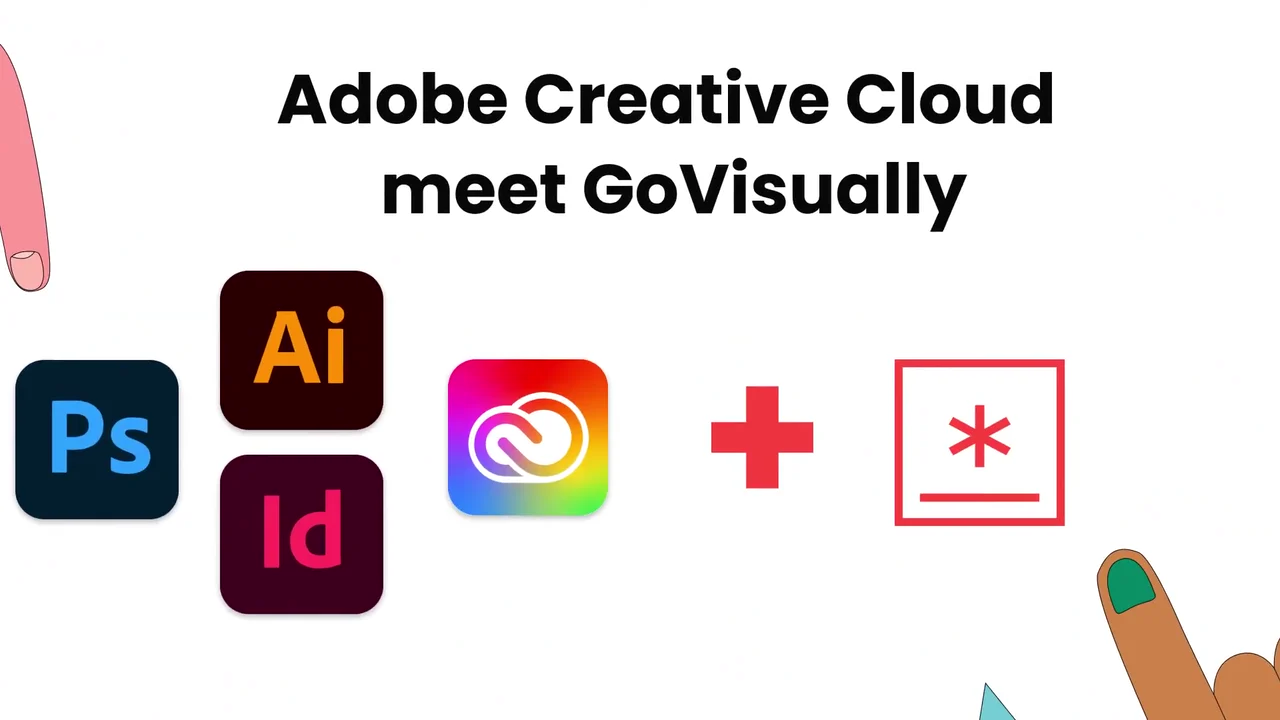
One card names both brands being joined. 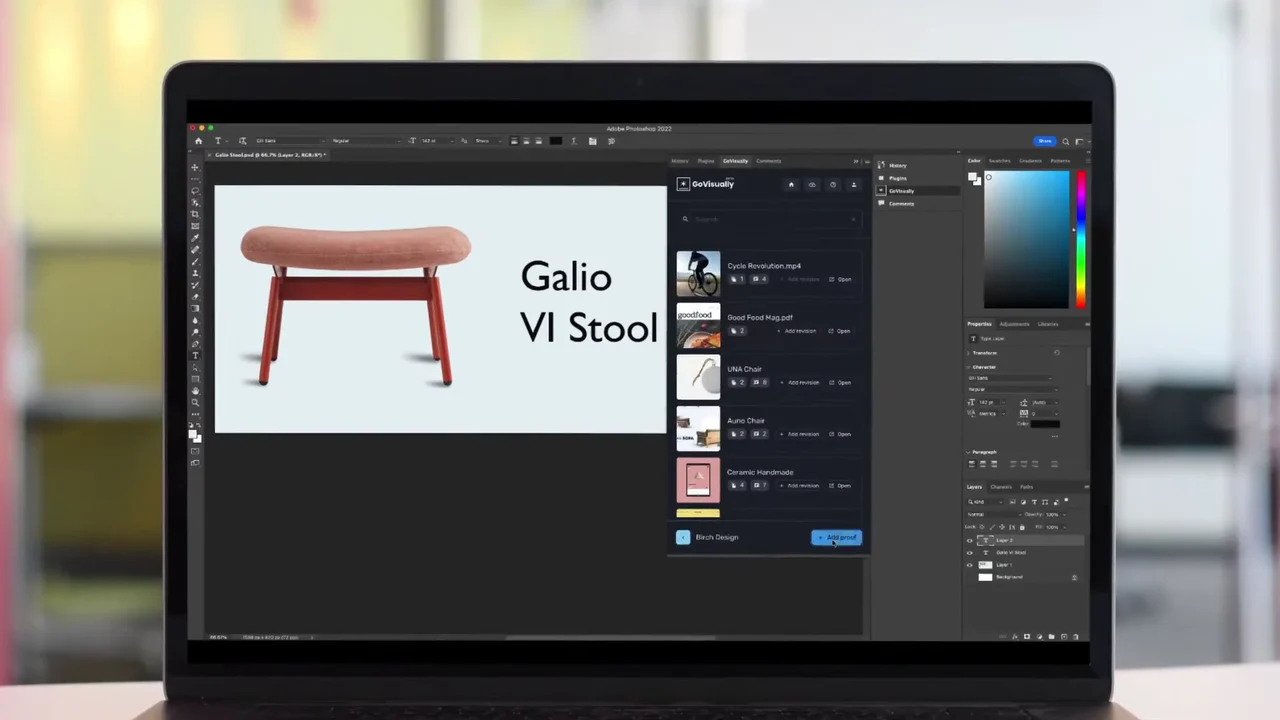
The plugin is shown where it lives: docked in Photoshop. 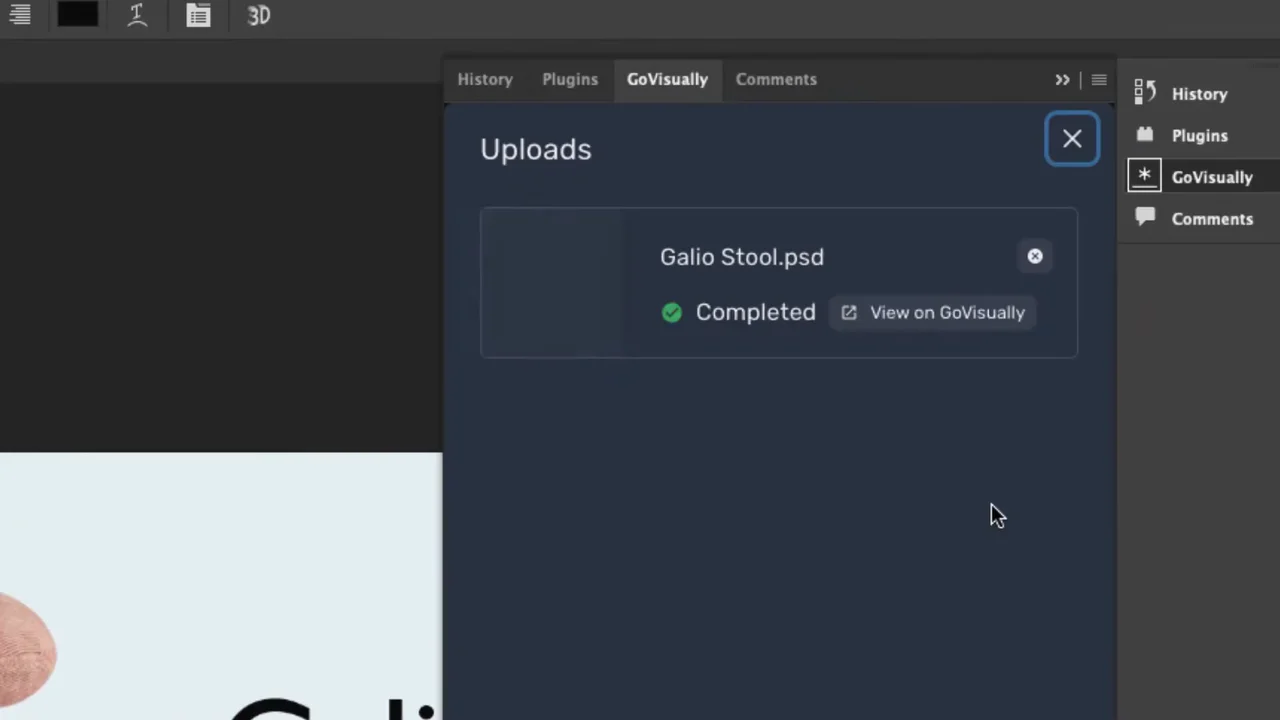
The proof leaves the app with no switch to a browser. 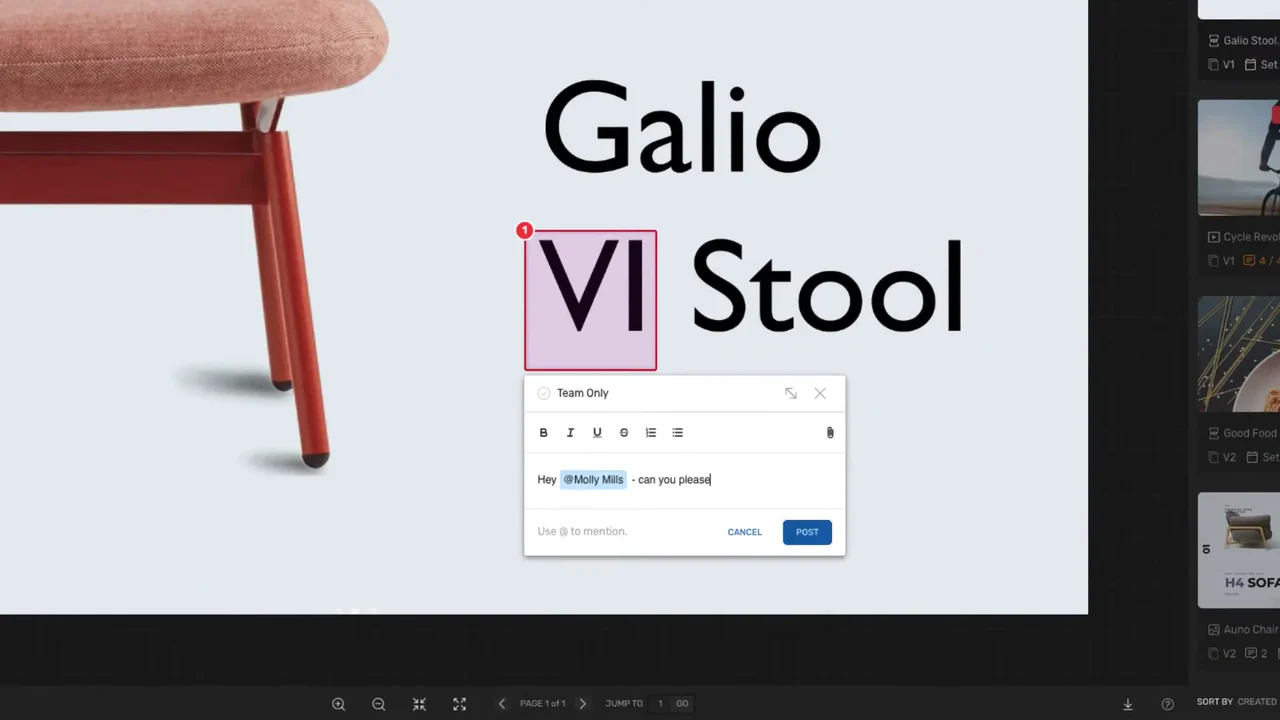
The reviewer marks 1 word and tags a teammate. 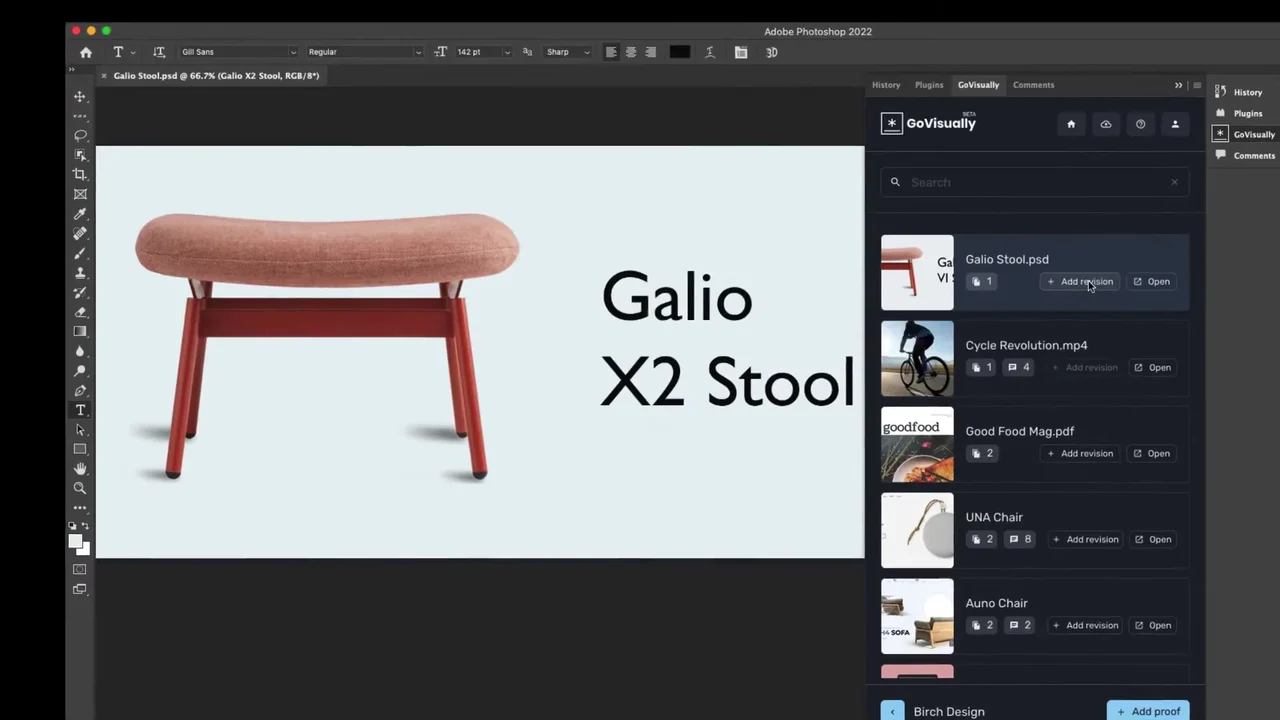
The change asked for is made in the design file. 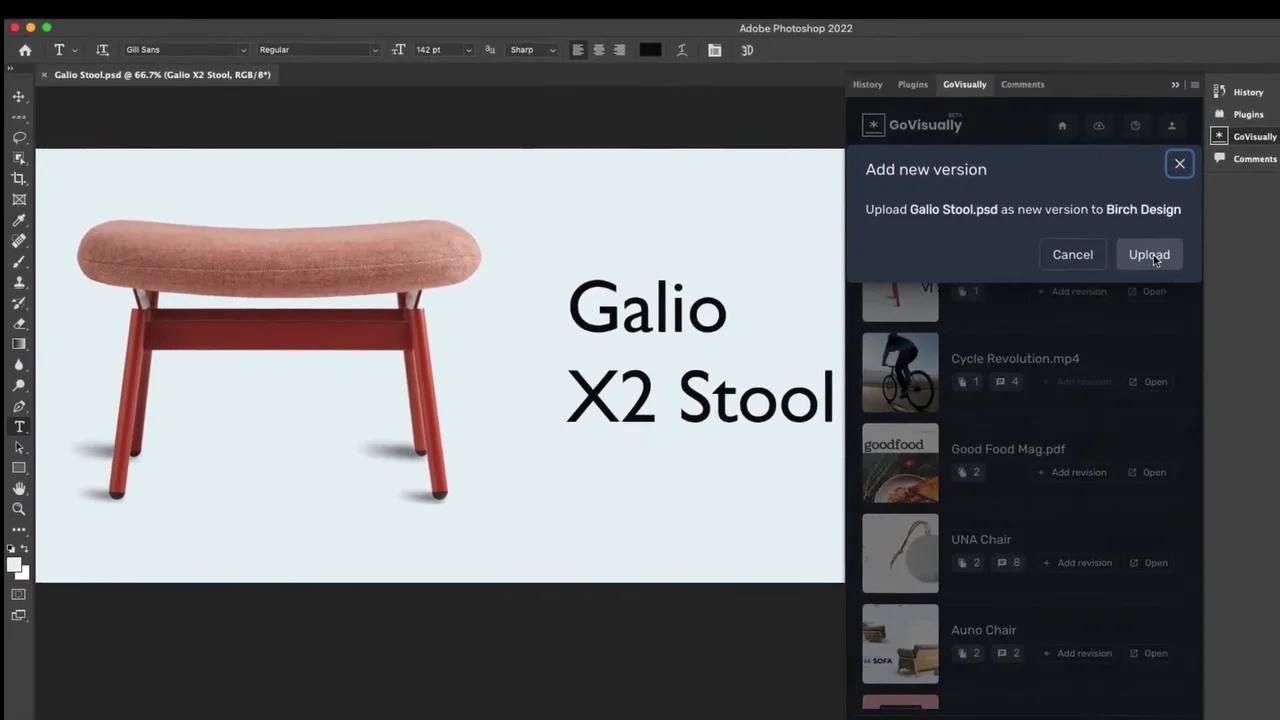
The revision goes back as a new version from the same panel. 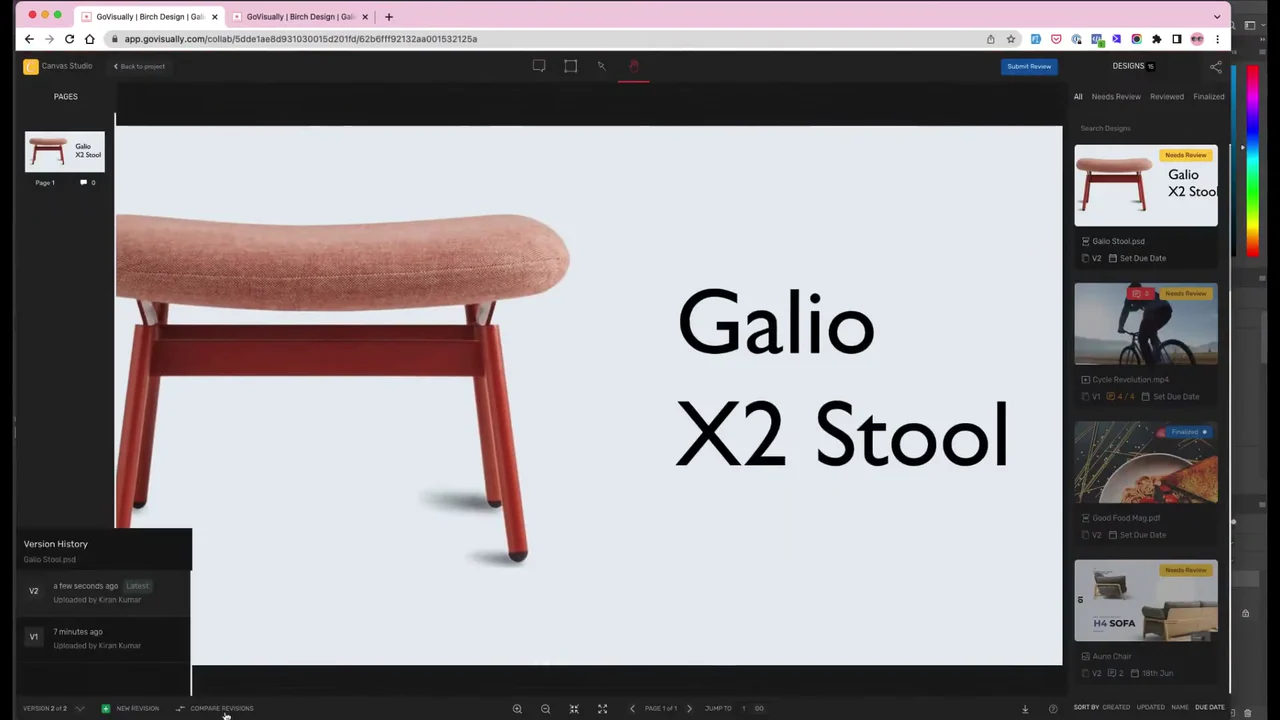
The new version has landed in GoVisually. 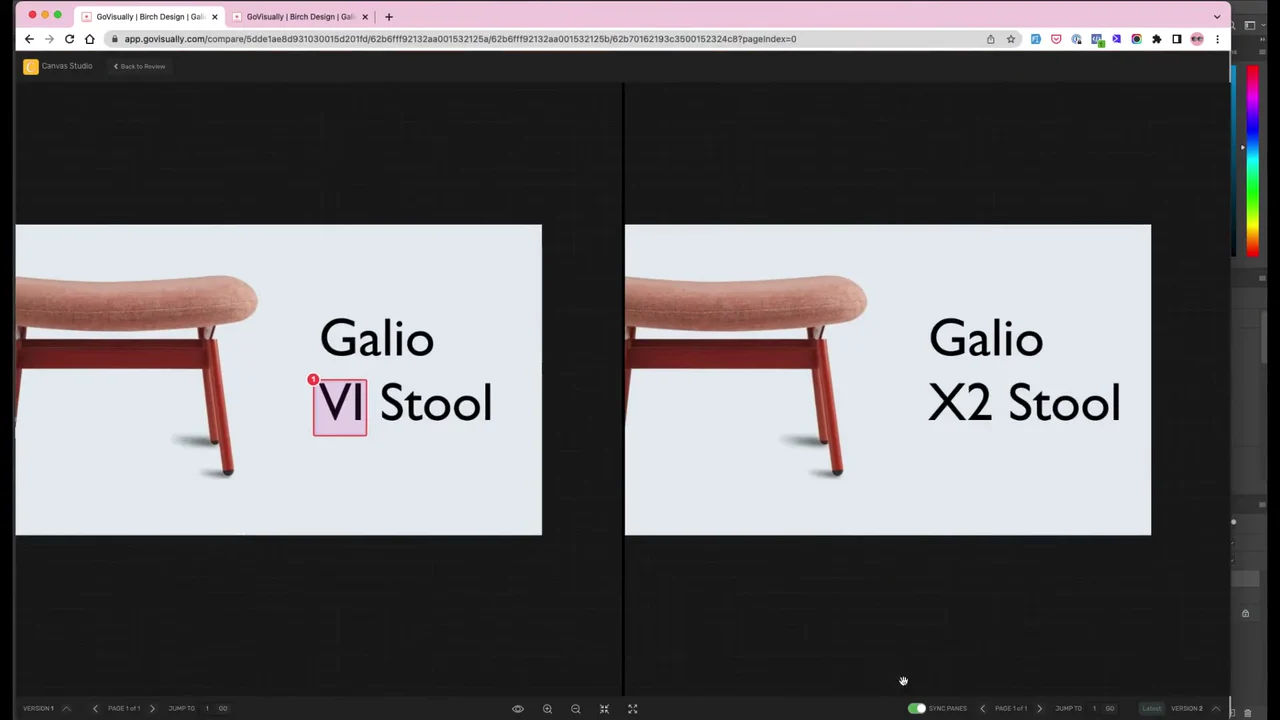
Old and new versions side by side close the loop. 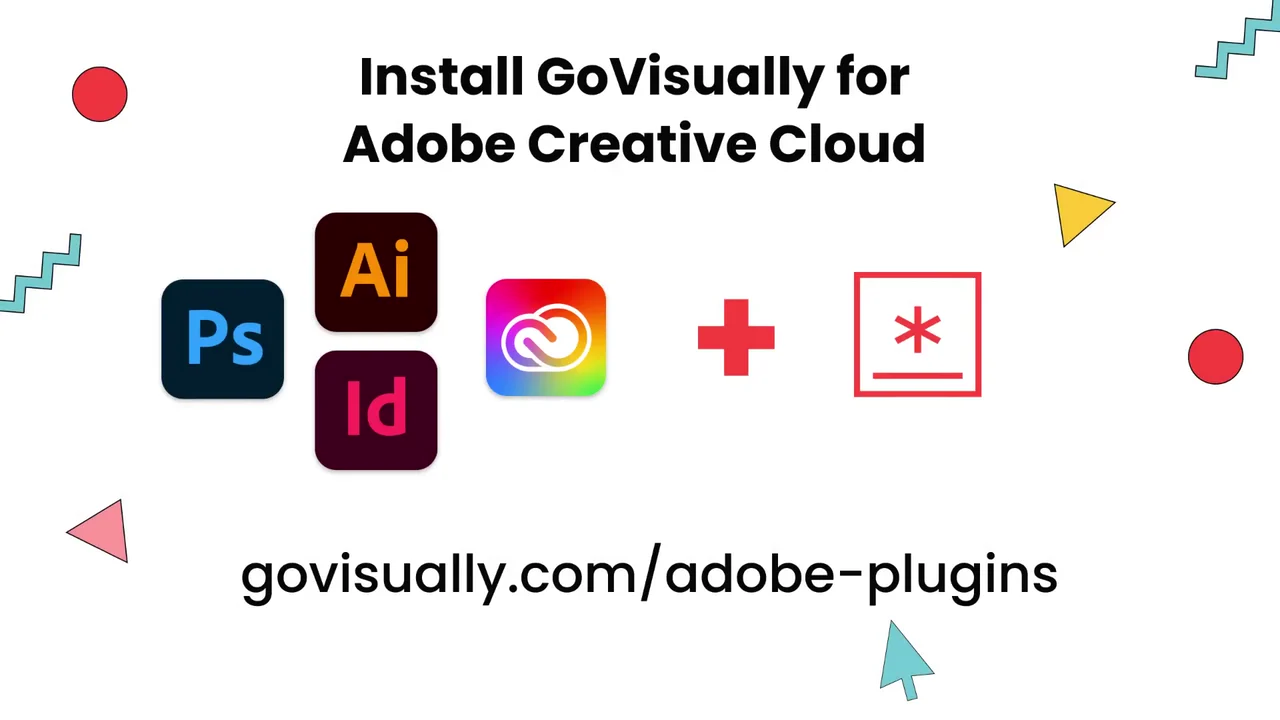
The close: 1 install step and 1 address.
4 decisions behind the GoVisually plugin video
Decision 1
Carry 1 file through every step
The "Galio VI Stool" appears at 0:04 and is still on screen at 0:40. Send, review, revise and compare all happen to the same design.
Copy it: Pick 1 realistic file from your buyer's world and run it through every step of your product loop.
Decision 2
Make the change small enough to read
The reviewer's red box at 0:17 sits on 1 word, "VI". The revision at 0:22 changes that word to "X2", and the compare at 0:38 puts both side by side.
Copy it: Choose an edit a viewer can spot in 1 second, and tie it to the comment that asked for it.
Decision 3
Show the host app, not only your own UI
From 0:04 to 0:14 and again from 0:22, the action happens in Photoshop with GoVisually as a docked panel. The browser appears only for the review from 0:14 and the compare from 0:34.
Copy it: If you sell an integration, record most of it inside the tool your buyer already has open all day.
Decision 4
Bookend with the logos and 1 address
The video opens on "Adobe Creative Cloud meet GoVisually" and closes on "Install GoVisually for Adobe Creative Cloud", holding "govisually.com/adobe-plugins" from 0:41 to 0:46 as the last thing on screen before the video goes black.
Copy it: Open on the 2 brands being joined, end on the install link, and keep it up long enough to type.
From GoVisually screen recordings to a 51-second plugin video
- Round-trip script. The plugin's promise was cut to 5 beats: send, review, revise, send again, compare, all on 1 stool design.
- Screen recording. The panel inside the Adobe app and the GoVisually review screens were recorded with the Galio stool file.
- Framing for context and detail. Screens were shown on a laptop to set the scene, then cropped to the panel so its list and progress bars read.
- UI motion graphics. Moves between the Adobe app and the browser, the zooms onto the panel and the side-by-side compare were built as motion.
- Illustrated title cards. The opening and install cards were drawn with the Adobe app icons, the GoVisually mark and pointing hands.
- Edit, color and sound. The edit was set to the music track credited as "Vibe Check by Griz", then color graded and finished with sound design.
Scope of work:
Production took 3 to 4 weeks on a budget of $1,200 to $2,000. See the SaaS video production service for how a project like this is scoped.
Questions about the GoVisually SaaS product video
Why does the GoVisually video use the same stool design the whole way through?
The "Galio VI Stool" is sent at 0:12, commented on at 0:17, changed to "Galio X2 Stool" at 0:22 and compared at 0:38. Using 1 file lets the viewer follow the loop without reading any feature names.
How does the video show that the plugin works inside the Adobe app?
From 0:04 the GoVisually panel is docked on the right of Photoshop, and from 0:08 the video closes in on it to show the project list, "Uploading (1)" and "Galio Stool.psd" marked "Completed". The proof leaves the app without a switch to the browser.
What does the review step in the video show?
From 0:15 to 0:21 a red box with marker "1" is drawn on the word "VI", the comment is set to "Team Only", and the comment "Hey @Molly Mills" tags a teammate.
How does the video prove the new version reached GoVisually?
After the edit to "Galio X2 Stool" is sent from the same panel, the review screen shows "Galio VI Stool" and "Galio X2 Stool" side by side from 0:38 to 0:40.
What does the GoVisually end card ask the viewer to do?
From 0:41 to 0:46 it holds "Install GoVisually for Adobe Creative Cloud" and "govisually.com/adobe-plugins", then the video goes black. It is the only action asked of the viewer, and the address is the last thing they see.
How long did the GoVisually plugin video take to make, and what did it cost?
Screen recording, UI motion graphics, illustrated title cards, editing, color grading and sound design took 3 to 4 weeks on a budget of $1,200 to $2,000.
What Advids clients say
"Our team at Suppeco used ADVIDS recently, and I must say it's been a great experience. Every single stage of the production process has been very clear and extremely collaborative."Sheldon Mydat, Founder & CEO at Suppeco


Launching an integration that lives inside someone else's app?
Talk to Advids